


The profile form
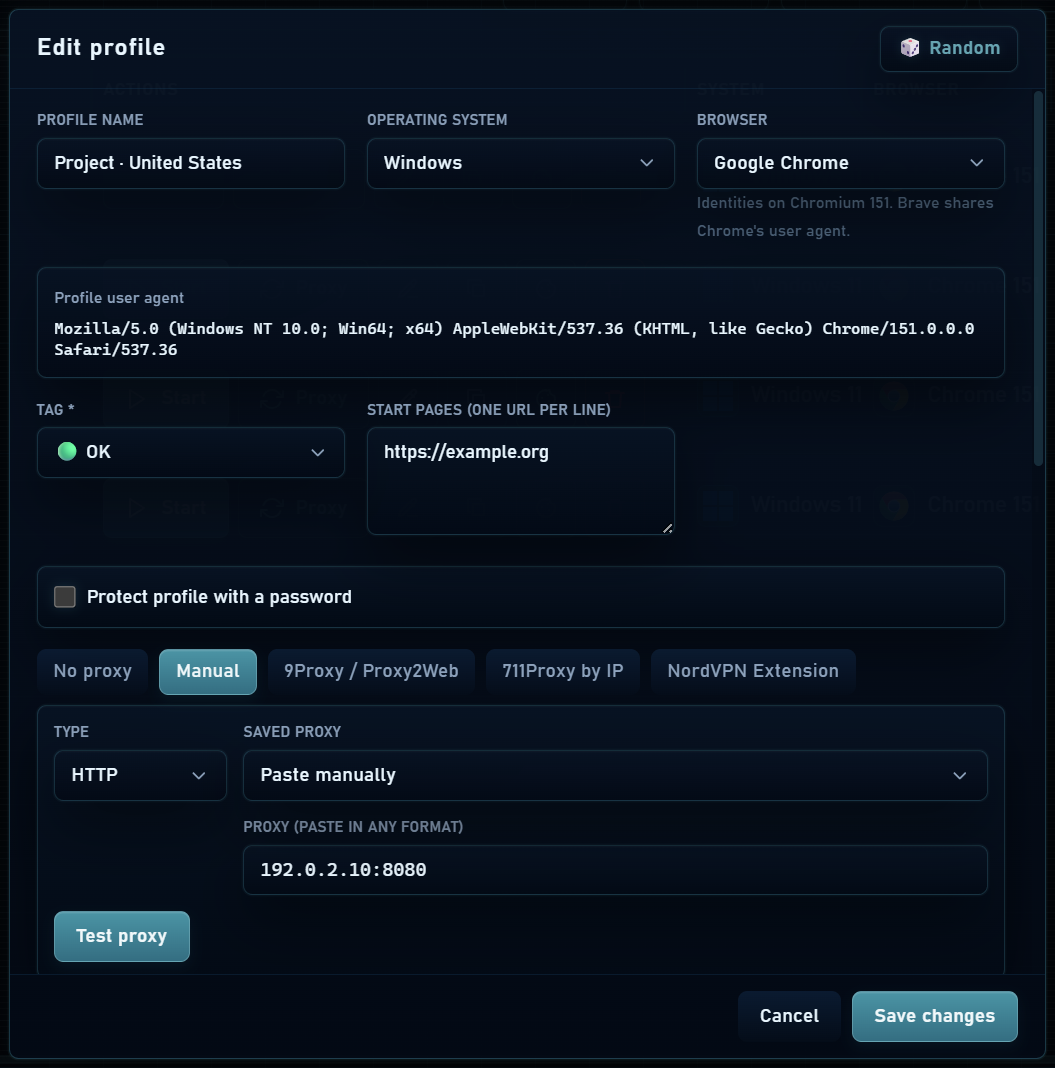
- Click New profile and set the name, tags, status and work folder.
- Choose a system and browser identity from the available options. These identities run using Mantis’s Chromium engine.
- Configure a direct connection, a proxy or NordVPN Extension. Proxy and NordVPN are alternative connection modes within a profile.
- Review hardware, fingerprint, language, timezone and start pages, then save.
The profile platform describes what websites see. It does not change the operating system installed on your PC or replace Chromium with Safari or Firefox.
Start and stop
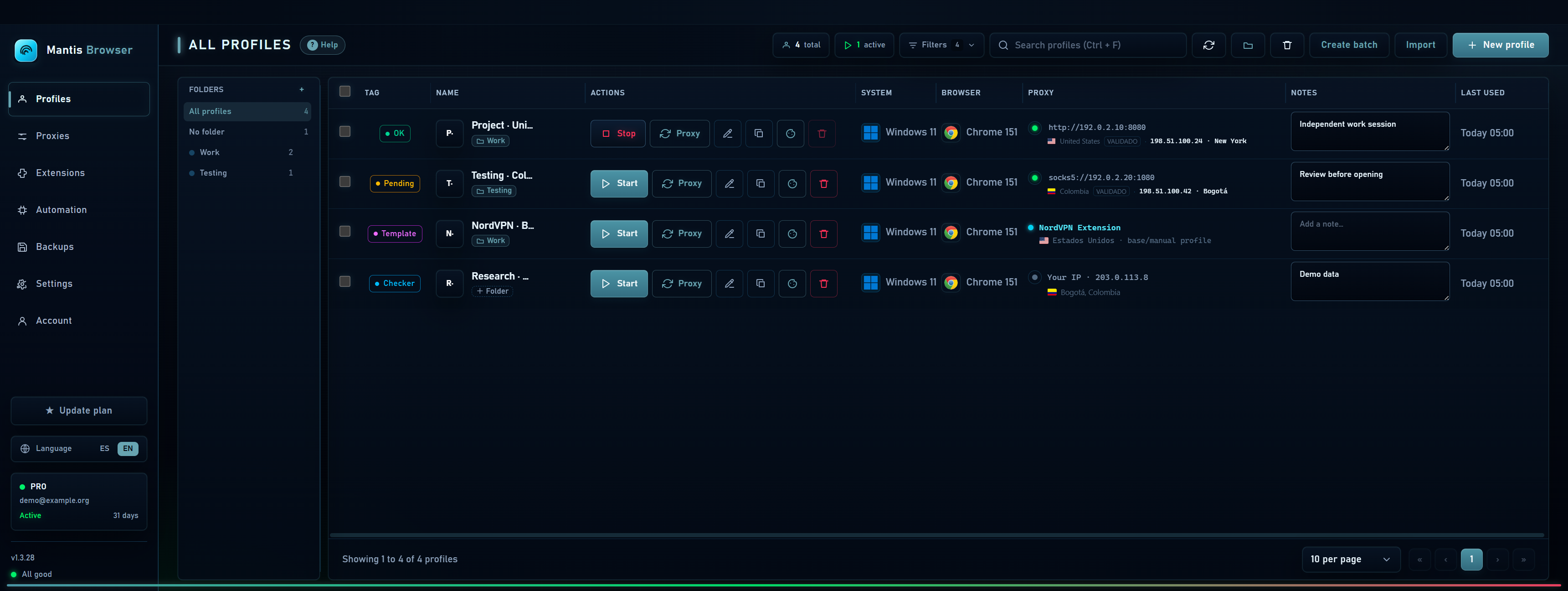
Start opens a window using that profile’s folder. Stop closes its browser; its data remains for the next session. An already running profile does not need a second session window to continue working.
If it cannot start, check your plan quota, profile lock, connection and whether a previous process is still shutting down. Do not copy a profile folder while it is in use.
Edit while preserving continuity
- Stop the profile before changing its connection or identity.
- Click the pencil, change the required fields and save.
- Start it again to apply the configuration on the next launch.
Duplicate and select multiple profiles
Duplicate creates another profile from the selected profile’s configuration. It is useful for preparing a new session; use Backups to preserve an exact profile and its folder.
Multiple selection lets you start, stop, tag, move or delete several rows. When starting many profiles, use the queue and adjust concurrency and delay to spread the load on your PC.