

Before you start
The desktop application runs on 64-bit Windows 10 and 11. As a guideline, allow at least 4 GB of RAM, preferably 8 GB or more, and disk space for the app and your profile folders. Each running session uses memory and each profile can grow over time.
Check the Download page for installer availability. If it says “Available very soon”, contact support for early access. Selecting a macOS or Linux identity inside a profile does not install Mantis on those systems.
Install and sign in
- Download the installer from the official page when available and follow its instructions.
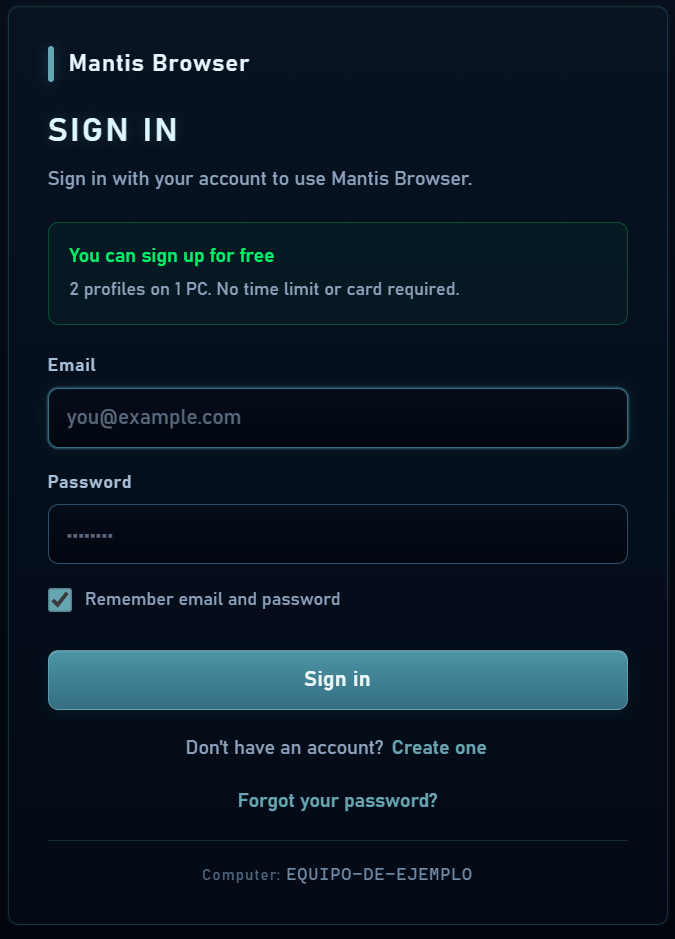
- Open Mantis Browser. On the sign-in screen, choose Create one if you do not have an account yet.
- Register with your email and password and confirm the code sent by email. Check spam if you cannot find it.
- Sign in. The free plan provides 2 profiles on 1 PC, with no card and no time limit.
Create your first session
- In Profiles, click New profile and give it a recognizable name.
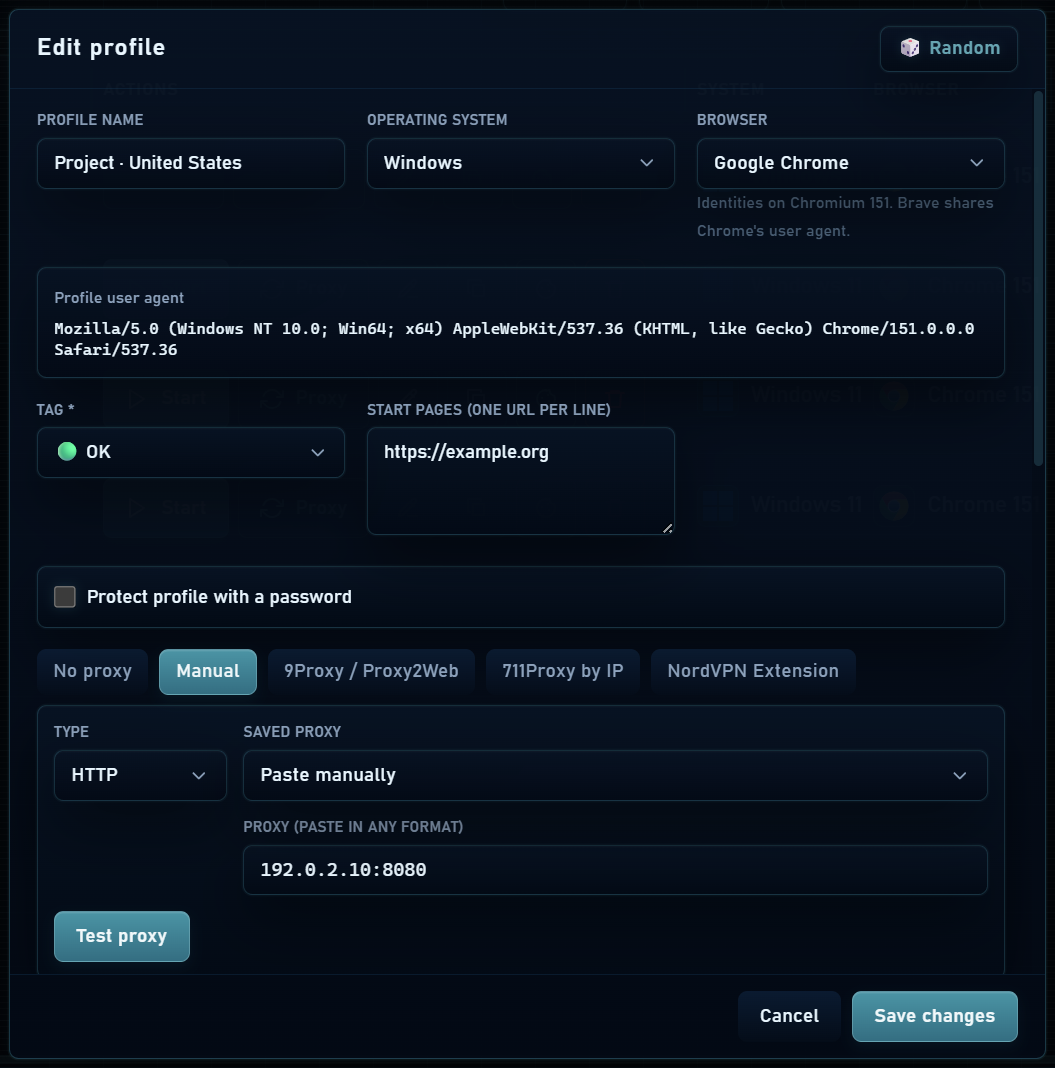
- Review the system identity, hardware and proposed fingerprint. Start with the consistent configuration prepared by the app.
- If you need a different IP address, configure and test a proxy. Without one, the profile uses your computer’s connection.
- Save and click Start in the profile row. Open the website you want to work with in that window.
- When finished, click Stop. Start the same profile again to continue with its saved data.