


Set up start pages
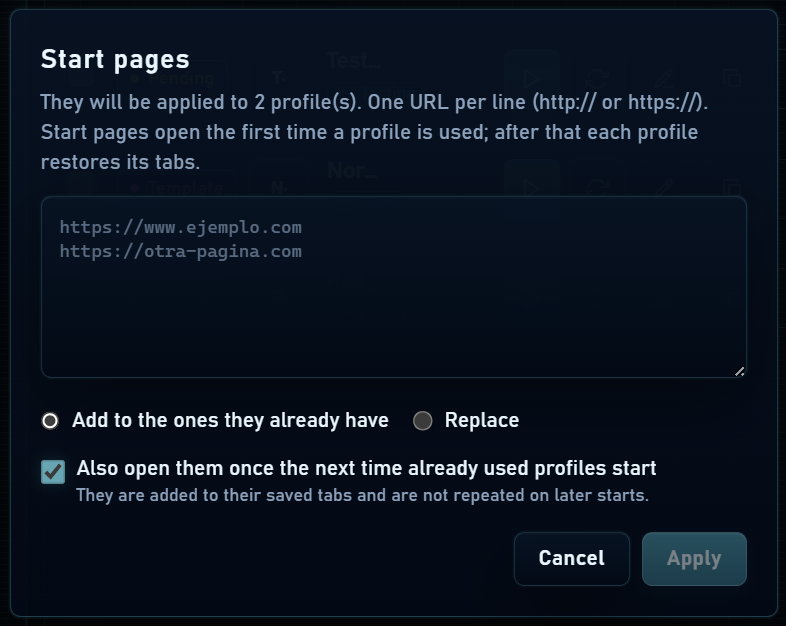
Set URLs in the profile form, or select several profiles and open Start pages. Enter one address per line, using http:// or https://.
- Choose Add to keep the old list and append URLs, or Replace to change it.
- Check how many profiles are selected before applying.
- Save. Replacing with an empty list removes start pages from those profiles.
First launch and later sessions
Start pages open the first time a profile is used. On later launches, the profile restores tabs according to its restoration setting. Editing the list does not force those pages to reopen on every launch.
For an already used profile, select “Also open them once the next time already used profiles start”. They are added to saved tabs once. Use this to prepare a new task without losing the previous context.
Bookmarks and browser data
Bookmarks saved inside a browser window belong to that profile. A start-page list is a launch instruction, not a copy of bookmarks or history.
If you need to preserve the browser’s data for later restoration, use a full backup under Backups.