


What a backup contains
Backups is included in Starter, Pro and Max. A .miadbak backup saves profile metadata and its Chromium folder: cookies, history, website storage and other browser data. It excludes caches and lock files that are unnecessary for restoration.
Restoring recovers the profile with its saved identity. Session continuity also depends on the website: it can expire or be revoked even after successful restoration.
Create a backup
- Stop all profiles you want to include. The app requires them to be closed before copying their data.
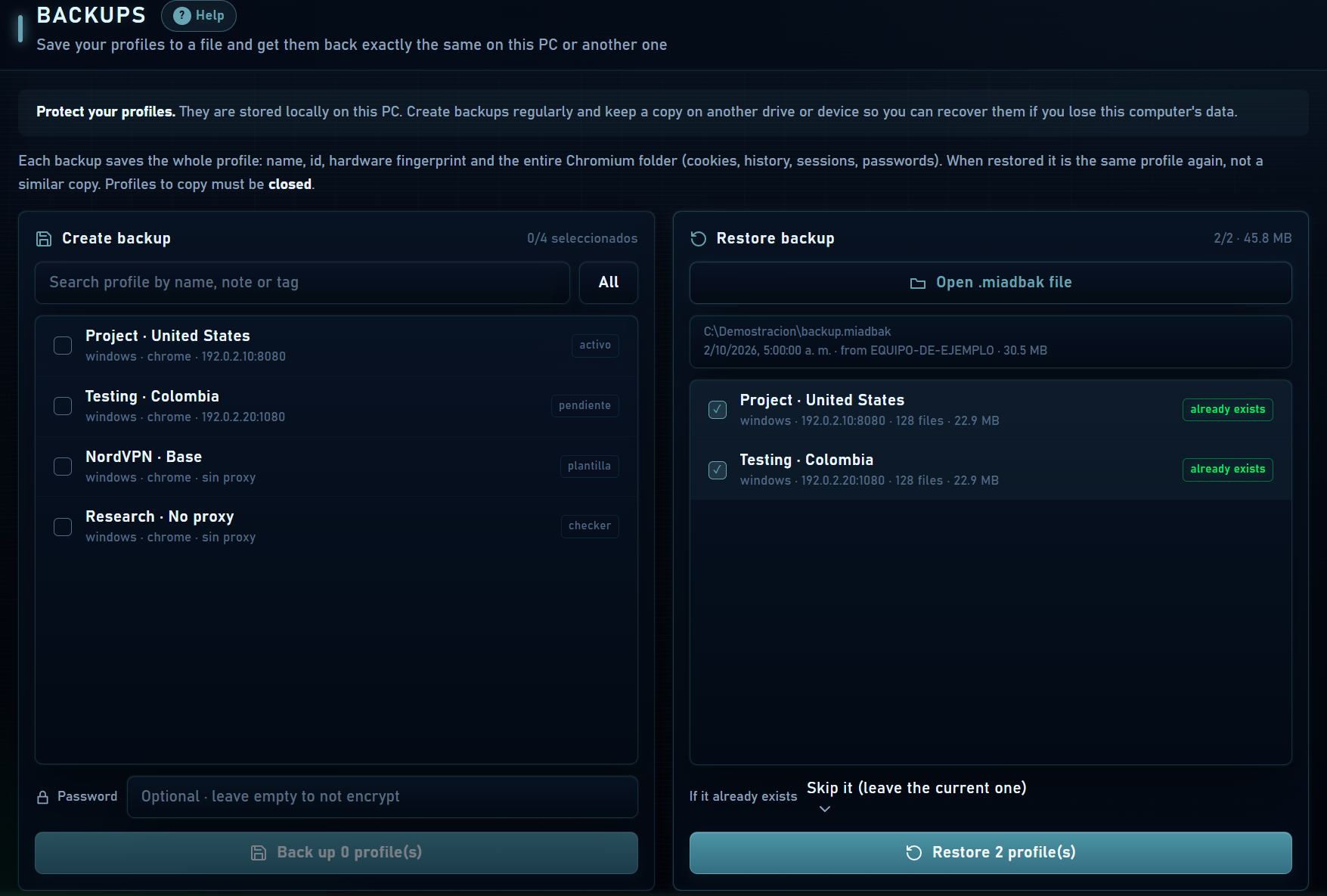
- Under Backups, select one, several or all profiles and choose Create backup.
- If using password protection, enter at least 8 characters and keep that password.
- Choose the .miadbak destination and wait for progress to finish. Review any warnings about profiles without a cookie key.
- Copy the completed file to another drive or device and periodically check that you can open its summary.
Restore and handle conflicts
- Open the .miadbak under Restore and review its profiles.
- Select the profiles and enter the password if the file is protected. Check available quota.
- If a profile already exists, choose whether to skip or replace it. Back up its current state before replacing it.
- Restore and verify the result by starting a profile. Confirm its IP and access to your websites.
Protection and moving to another PC
A .miadbak password protects the portable key used for encrypted browser data; it does not encrypt the entire container or all its metadata and files. Keep the file in protected storage.
Restoration adapts Chromium’s key to the destination Windows user when possible. If that key could not be included or recovered, profile information may restore without recovering its sessions. Keep account access available so you can sign in again.
A .miadprofile is a different format: it encrypts configuration and cookies for transfer, but does not contain the full browser folder. See Cookies to distinguish these options.