


How the inventory works
Proxies brings together saved connections and imported sessions. An available entry can be assigned to a profile; an assigned entry is already reserved. Before deleting or reusing a connection in use, review its associated profile and connection.
The integration does not include provider credit. You need your own account, units or available traffic and, when required, the provider’s application or API.
9Proxy and Proxy2Web sessions
- Open and configure 9Proxy when using its local integration. Mantis uses the local API; check host and port in both applications.
- Choose the mode and country filters and, where applicable, state, city, ZIP or ISP.
- If using Proxy2Web, import the session block generated by 9Proxy into Proxies.
- When creating a profile, choose an available location or session. Review its reservation and verification before browsing.
Availability and usage depend on your 9Proxy plan. Requesting a new session may consume credit; do not assume saving an entry makes its IP permanent.
711Proxy: lists and templates
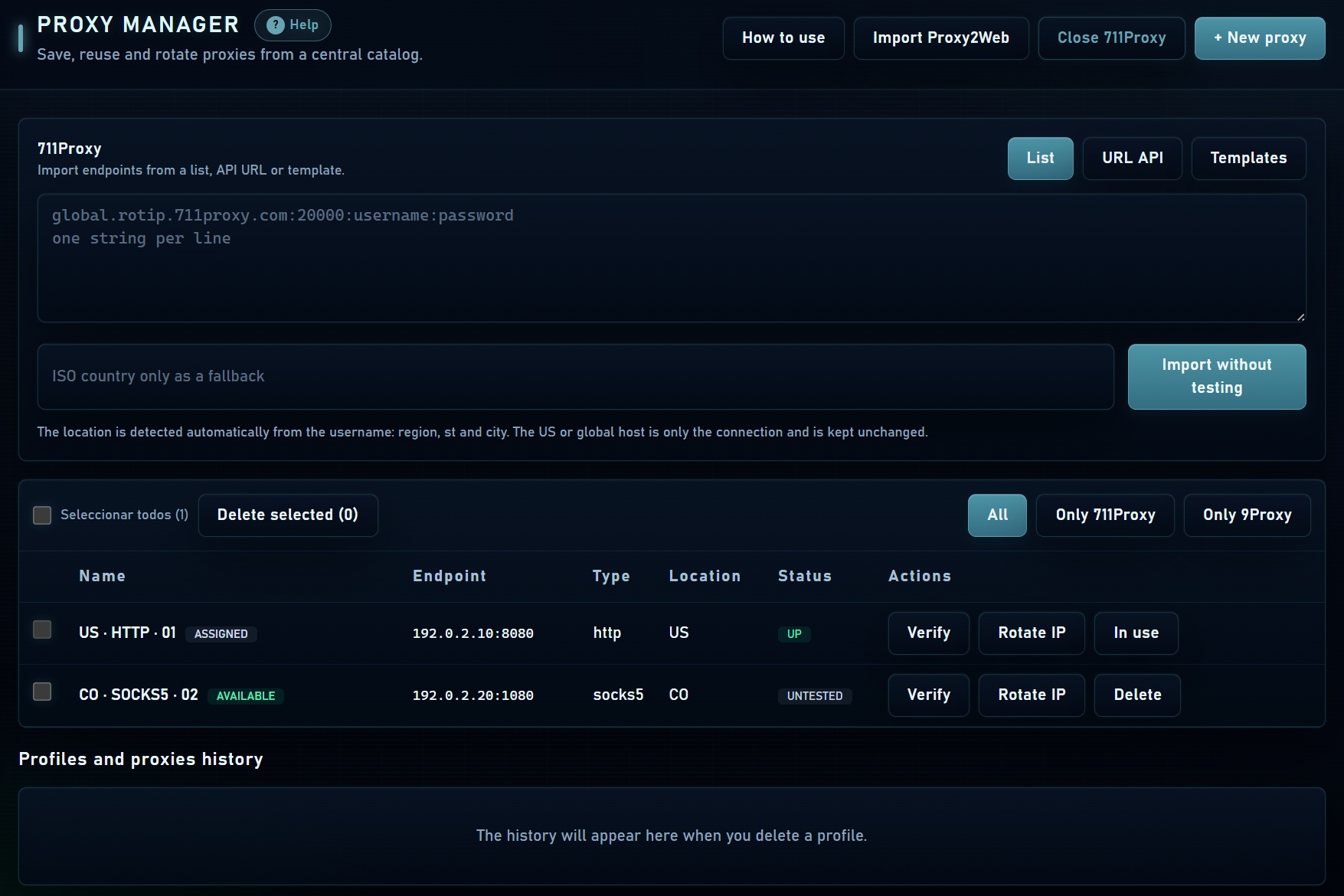
- In Proxies, open the 711Proxy importer and paste provider endpoints, one per line, or configure its API option.
- Check host, port, username and password. If using a template, preserve the provider’s location parameter format.
- Select country and available filters, then save the inventory. Import without testing saves the details without performing a connection check at that time.
- Assign an available entry to the profile. When using it, review its session and expiry indicators.
The provider hostname and exit country are different: location may be encoded in the username or session parameters. Keep the US or global server supplied by your provider; check the actual IP to confirm the country.
If no sessions are available
- Check filters: a specific city or ISP may have no inventory.
- Check whether entries are already assigned to other profiles.
- Check credit, traffic, session duration and credentials with your provider.
- A successful import does not prove that every connection works; test the one you intend to use.