



Choose the separation you need#
Two tabs in one profile usually share a website’s cookies. If that service does not support switching between accounts, the second login may replace the first. Another window of the same profile does not create independent storage.
| Option | When to choose it |
|---|---|
| Website account switcher | The service supports multiple accounts and clearly identifies the active one. |
| Incognito | A temporary check; you do not need to retain that session after closing all its windows. |
| Separate profiles | Recurring work with different accounts and individual settings. |
Try Chrome profiles first#
- Open Chrome’s profile menu and choose Add profile. Use a recognizable name, such as Client A.
- Create Client B as a separate profile. Sign in to the first account in A and the second in B.
- Open both profiles and check the account name inside the website, not just the window title.
Chrome’s official help explains adding and switching profiles. You do not need a paid tool just to try this approach.
Keep projects in one list with Mantis#
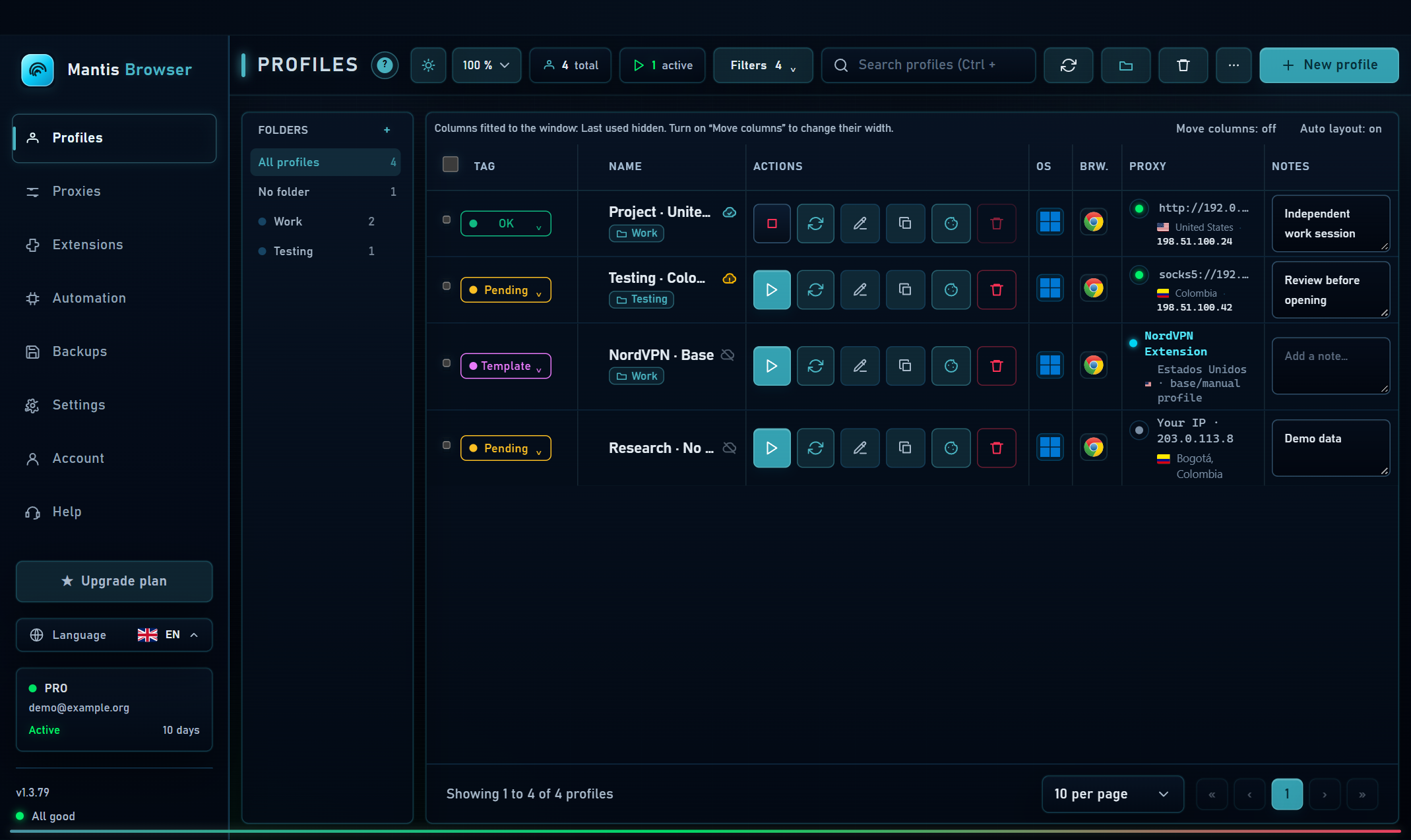
Mantis organizes profiles using names, folders, tags and notes. Its free plan includes 5 profiles on one Windows PC or Mac, with no card or expiry. That is enough to try two accounts you are authorized to manage.
- Create two new profiles and name them by client and account. Do not duplicate a signed-in profile expecting a different account.
- Start each profile, sign in to its account, and note which project belongs to that window.
- Before posting or changing data, check the active account’s avatar or email again.
What to check when reopening#
Close both profiles and reopen them. Check which retains the session and which asks you to sign in again. Expiry, extra verification and account rules belong to the website; separate cookies do not require it to keep you signed in.